mirror of
https://github.com/black7375/Firefox-UI-Fix.git
synced 2026-07-02 08:07:44 -07:00
12
Installation Guide
MS_Y edited this page 2023-07-08 14:22:03 +09:00
0. Choose Lepton's Distribution
- Original Lepton: Take full advantage of Proton's strengths.
- Lepton's Photon style: Preserve Photon-like tabs and panels.
- Lepton's Proton style: Preserve Proton-like tabs.
Designs (Click)
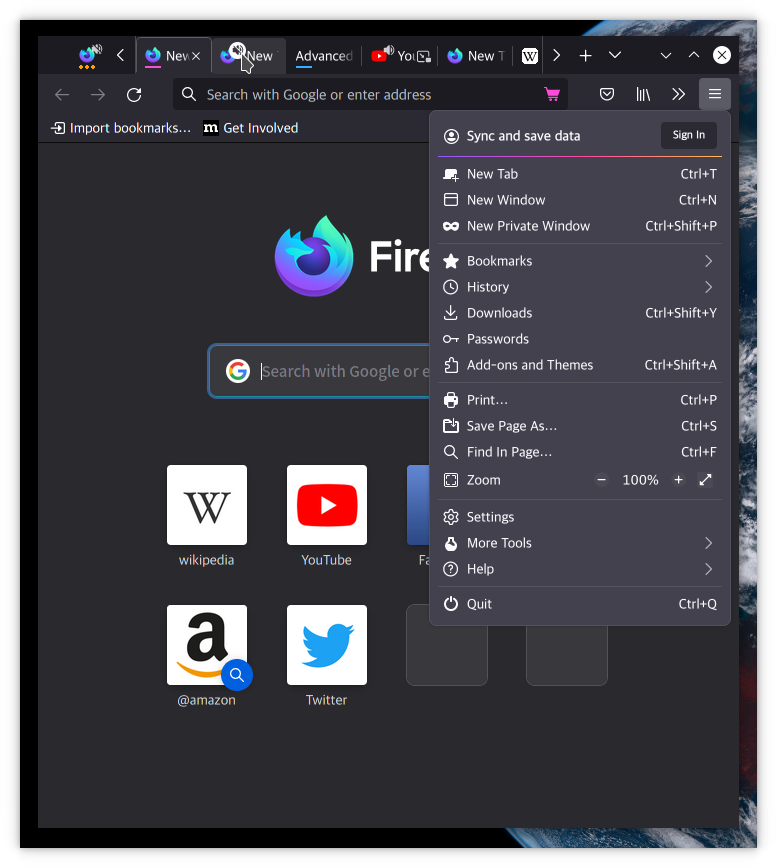
(Lepton's design ⬆️)

(Lepton's Photon styled design ⬆️)

(Lepton's Proton styled design ⬆️)
Script install (Click)
Experimental, but you can install it by script.
Linux/Mac users:
bash -c "$(curl -fsSL https://raw.githubusercontent.com/black7375/Firefox-UI-Fix/master/install.sh)"
Windows users: Run with powershell (Does not work at Win7?)
Powershell -c "Set-ExecutionPolicy Bypass -Scope Process -Force; [System.Net.ServicePointManager]::SecurityProtocol = [System.Net.ServicePointManager]::SecurityProtocol -bor 3072; iwr https://raw.githubusercontent.com/black7375/Firefox-UI-Fix/master/install.ps1 -useb | iex"
If you're done installing, you can go straight to step 4
1. Find Profile Directory.
This is a manual method, not a script.
1.1 Go to about:support

1.2 Open Profile Directory
Find the Profile Directory(Linux)/Profile Folder(Windows) entry.
Then, click the Open Directory(Linux)/Open Folder(Windows) button.
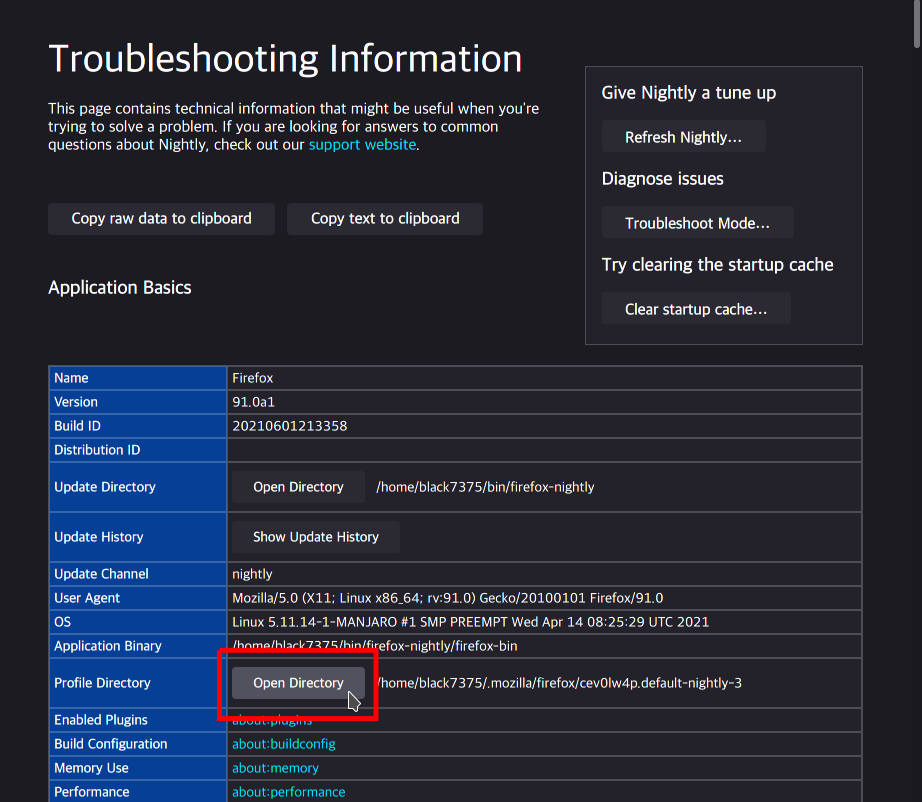
Step 1 DONE

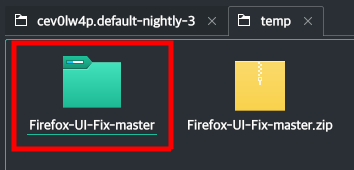
2. Download Files & Unzip
Currently, only GIT mode supports updates using scripts.
From Release (Click)
2.1 Download
2.2 Unzip as Directory

From Latest Code (Click)
2.1 Download
Go to the repo
Download codes as zip
- Click the Above right's "⬇️ Code" button
- Select "📦 Download Zip"

2.2 Unzip as Directory
From Git (Click)
Clone at the profile directory
# Original Lepton
git clone https://github.com/black7375/Firefox-UI-Fix chrome

# Lepton's photon style
git clone https://github.com/black7375/Firefox-UI-Fix chrome -b photon-style

# Lepton's proton style
git clone https://github.com/black7375/Firefox-UI-Fix chrome -b proton-style

3. Copy Files
From Release (Click)
Copy chrome, user.js to profile directory


From Latest Code (Click)
3.1 Copy user.js at profile directory
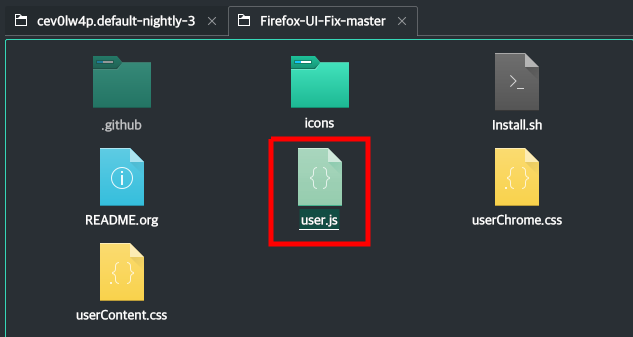
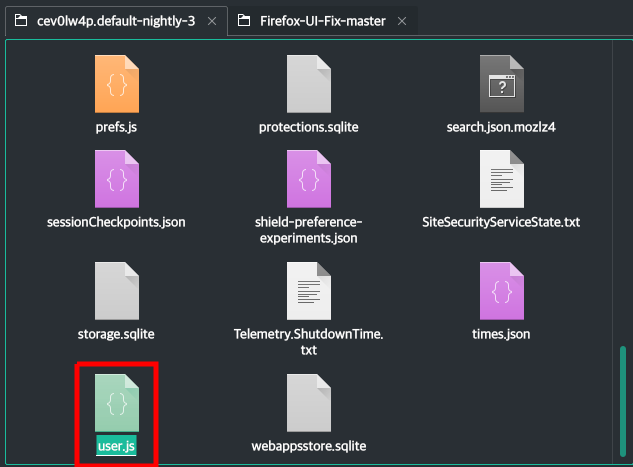
3.2 Rename unziped directory to chrome

3.3 Copy chrome to profile directory
From Git (Click)
Copy user.js to profile directory

4. Restart
Click the Clear startup cache... at the top of about:support

5. Enjoy
